






BREW HelloWorld - 4 / 7 -


Testing on Device
STEP 1. Set Licence code in the Boot function of " HelloWorld.cpp "
Before setting license code
// Boot Loader
SFCApplet::FactorySPP SFCApplet::Boot(AEECLSID id, SFXAnsiStringPtr license)
{
    *license = "heap://";

   return (id==AEECLSID_HELLOWORLD) ? (&HelloWorld::Factory) : (null);
}
After setting license code (Sample shown below)
// Boot loader
SFCApplet::FactorySPP SFCApplet::Boot(AEECLSID id, SFXAnsiStringPtr license)
{
    *license = "heap://"
     		"TIXDRQXNU5WHU8Y3Z9WOHWQR6Z3VPSDHDV"
      		"5CR1S4XASPWLUHWAS7Z5Z2TGS3XMSAT3UP"
      		"UQTLTARCYPSFUEJZ6ROSJWGUQSEYKR6V2U"
      		"4VESMTQLHKZ6X7Y2VKXHWIX3XBU0Z7VHWH"
      		"XIZBSGT5SPU3XLX0Z1Y4R3TCU6WGT9WHWI"
      		"VNYHYCUCR9T3SMTEWPRNVAX1Y4VPW2YCY9"
      		"YQV5R7Z9UIVHT6SDUPU2SIW6VCRCWBR2S4"
      		"WQUPYFWCYGT4VIT1WHXGYPTQSFYPWNV3UL"
      		"RNWFW7RBRFVKUKS2YQSQYHW1TPUPXBZ6UE"
      		"Y2WOYKR7S3TAU4TQS6UHVFVEVLU3R5SDSK"
      		"W7RPTNTPVQU2T4R8Z4VLUGEW3U98TLDR8/";;

   return (id==AEECLSID_HELLOWORLD) ? (&HelloWorld::Factory) : (null);
}
STEP 2. Setup Visual C++ Add ins
-
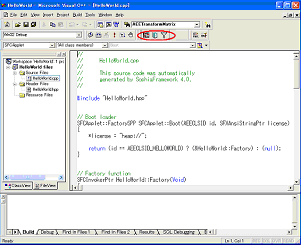
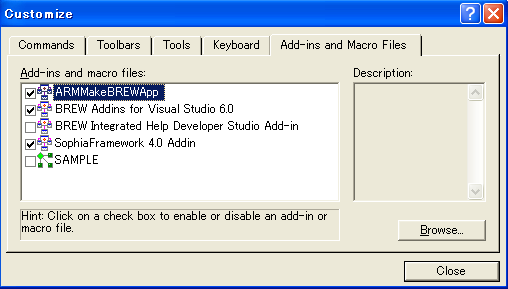
Check the tool bar
* if icons highlighted in the image is not visible:
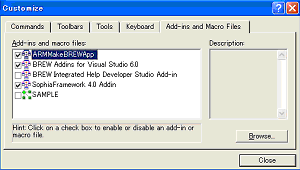
Go [Tool] -> [Customize], then check on [ARMMakeBREWApp], located in [Add ins and Macro files] tab
* When [ARMMakeBREWApp] is not found, Choose"BREW SDK" in [Control panel] -> [Add/Remove Programs].
Choose "Modify" when installing BREW SDK.
* When using BREW SDK 3.0 or higher, BREW SDK Tools 1.0.1 must be downloaded seperatly to get access to the icons and utilities.
STEP 3. Edit and generate make file
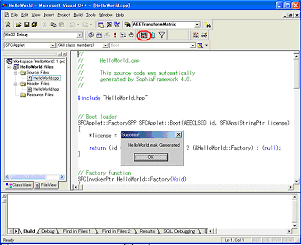
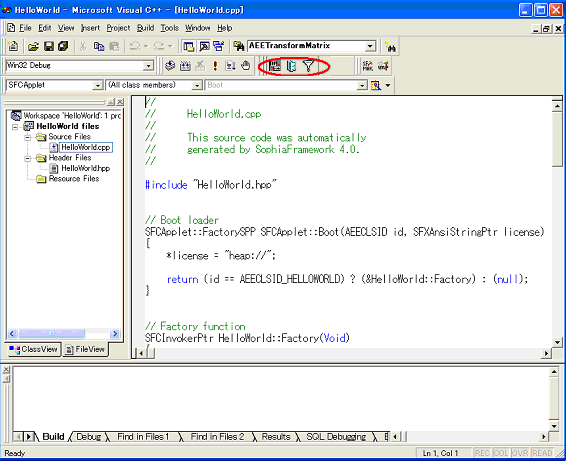
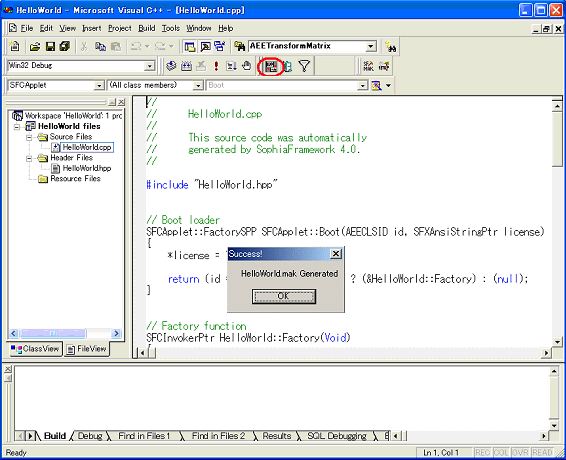
- Click on the leftmost icon on the tool bar
- Make file " HelloWorld.mak " will be generated
- Click on the SFMAK icon in the uper right tool bar. A make file is written
STEP 4. Compile for actual BREW device
-
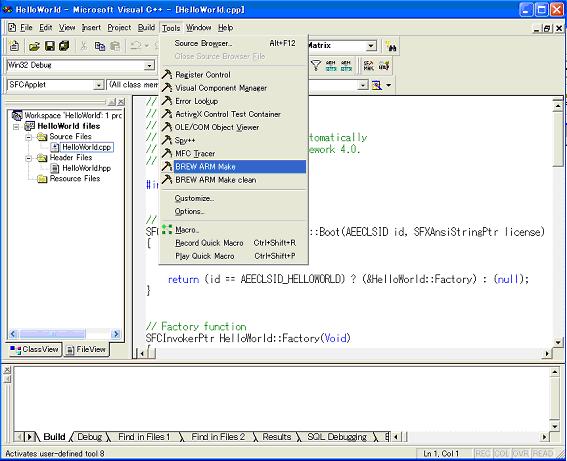
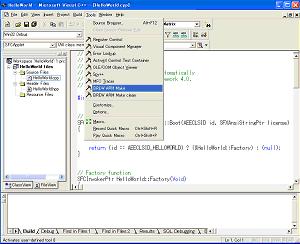
Choose [Tool] -> [BREW ARM Make] in Visual C++, then generate "HelloWorld.mod"
* The application should be saved within the SophiaFramework UNIVERSE directory, or else paths for the SophiaFramework UNIVERSE libraries and include items will have to be rewritten manually in the make file.